5 EPIC features that save you admin time
EPIC is the administration platform where you create Everything DiSC® assessments, send access codes and download reports. Most people learn the basics during certification and never find the rest. These five features save time and give respondents a better experience, whether you’ve used EPIC for years or just opened your account.
1. Save a custom invitation message
A short personal note in the access code email tells people why they’re taking the assessment and what happens next. Respondents who get that context tend to finish sooner and arrive with fewer worries.
EPIC lets you save several messages in a library and insert them whenever you send access codes or reminders.
- Go to Personal Options > Manage Custom Messages.
- Click Create a new message.
- Give the message a title and choose a folder for it (you can create a new folder).
- Write your text and click Save.
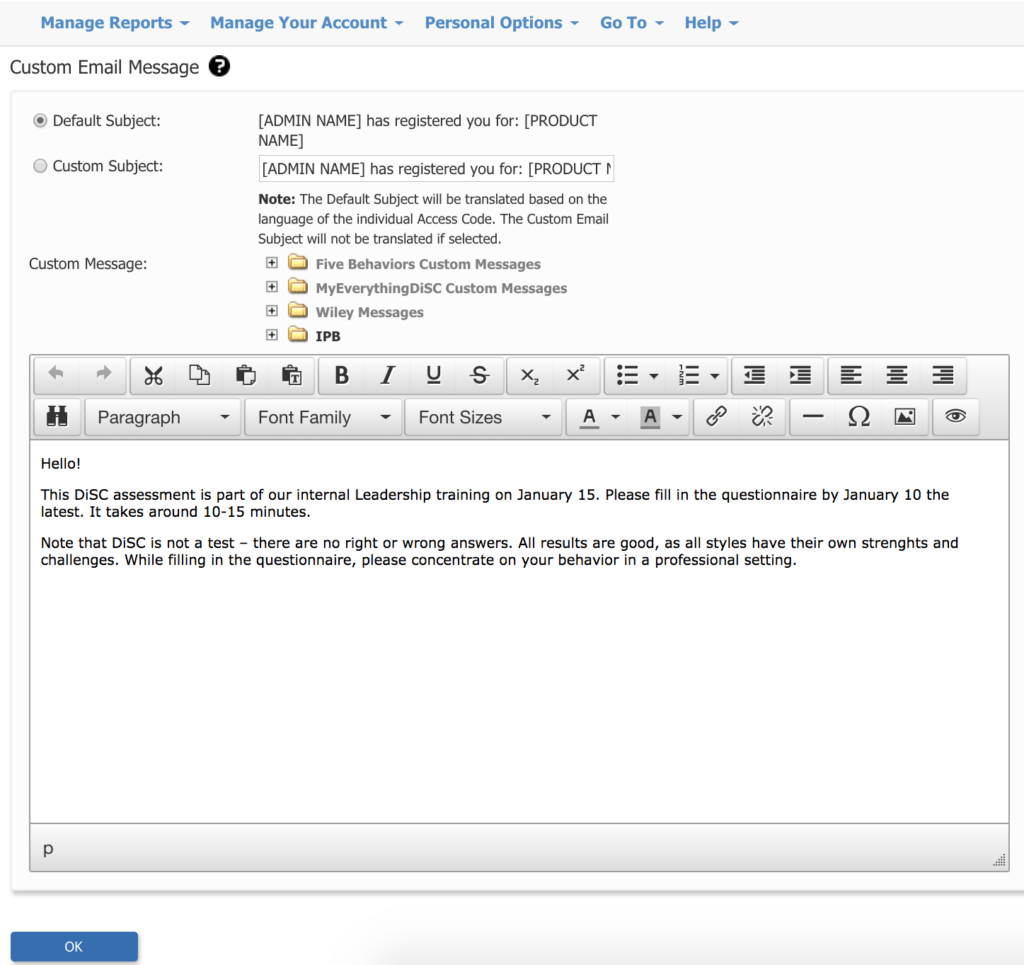
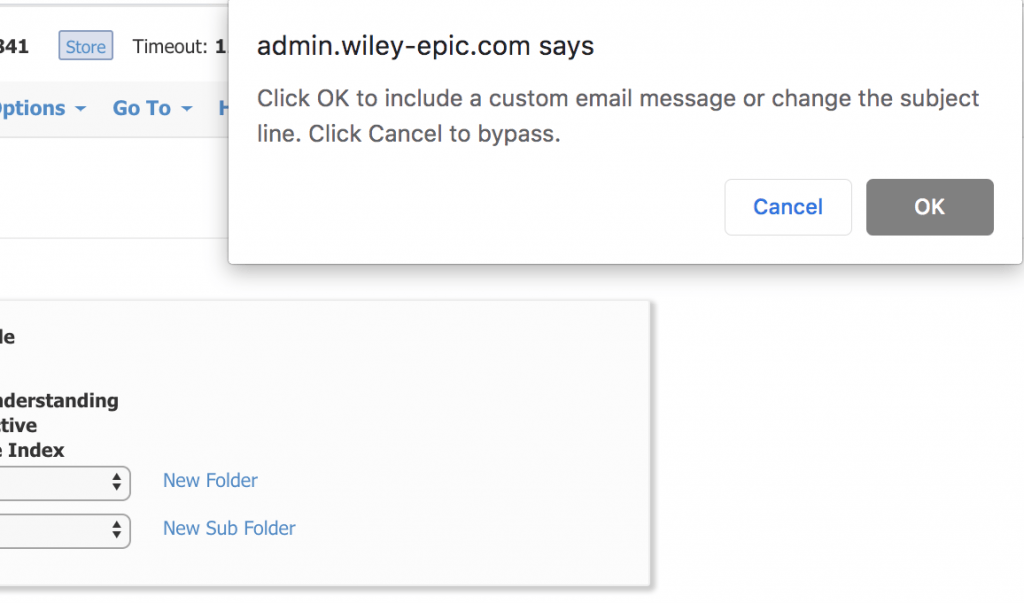
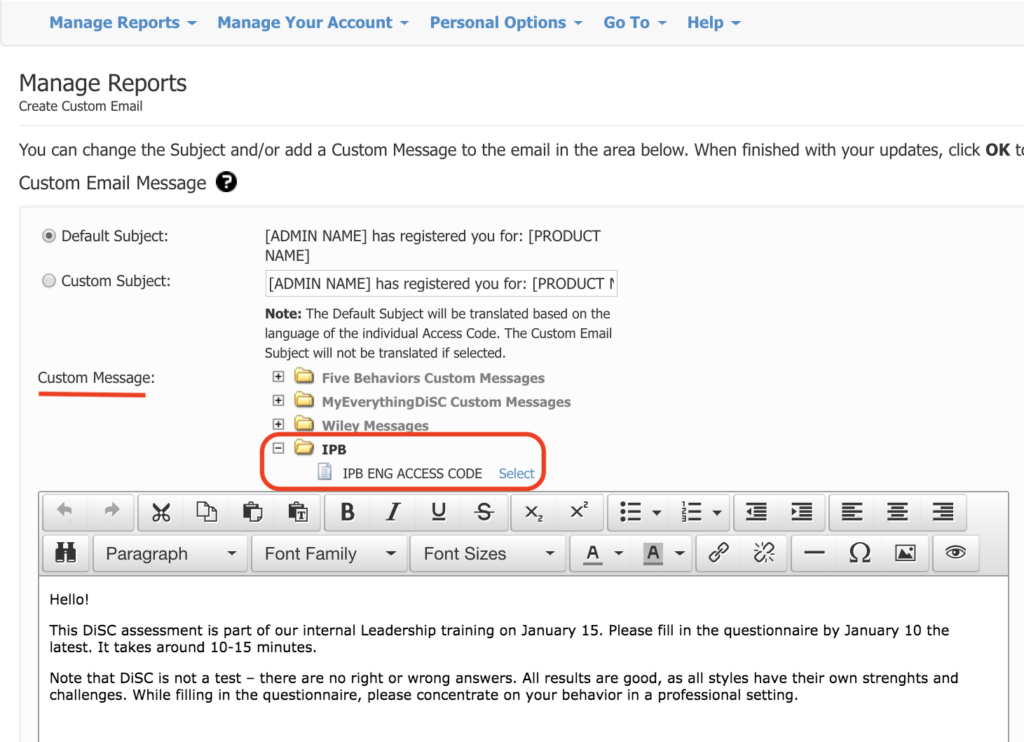
When you send access codes, click OK on the final confirmation, find your saved message under Custom Messages, click Select and then Send. Not sure what to write? Our article on participant anxiety includes an invitation text you can adapt.
2. Import a group from Excel
If you’re sending five or more assessments, importing respondents from Excel is much faster than adding them one by one.
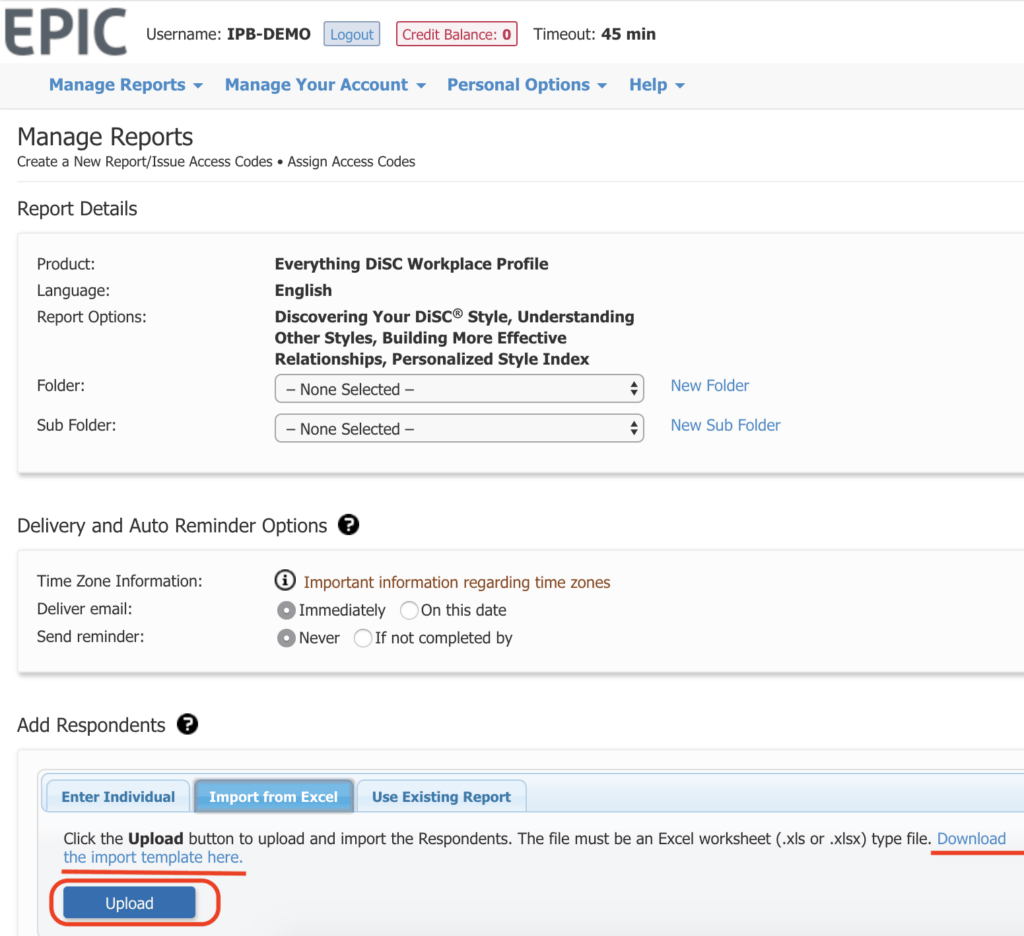
- Download the import template in EPIC.
- Fill in the respondents’ details. In column C, choose whether each person sees their results as soon as they finish.
- Save the file and upload it with the Upload button.
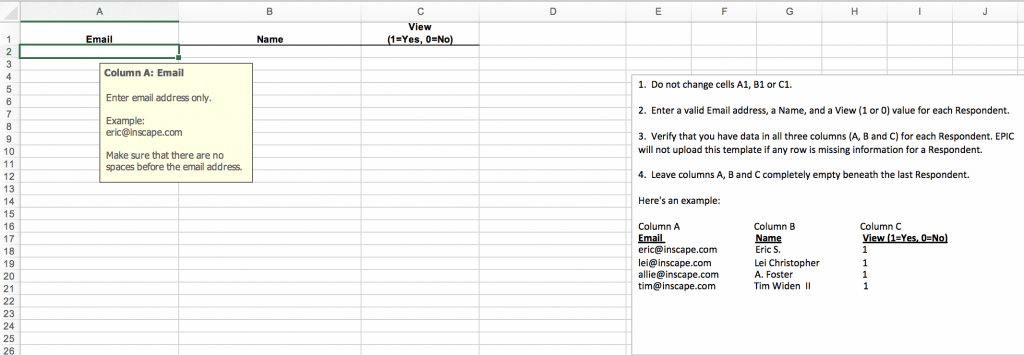
The template itself contains short instructions for each column.
3. Resend login information
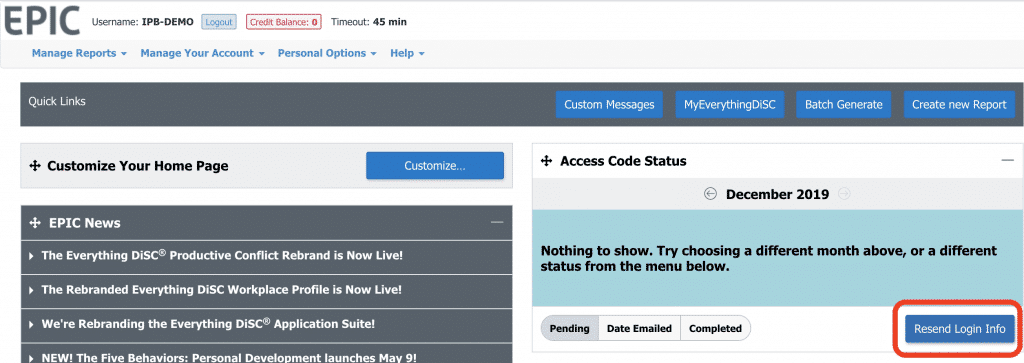
Someone always loses the access email or finds it in their spam folder. Instead of creating a new access code, go to Resend Login Info on the EPIC home page, click Search, choose the pending respondent and confirm. The original email is sent again.
4. Decide when respondents see their report
On the last page of Create a New Report, the View Report option in the Add Respondents box lets you choose whether respondents see their report as soon as they finish.
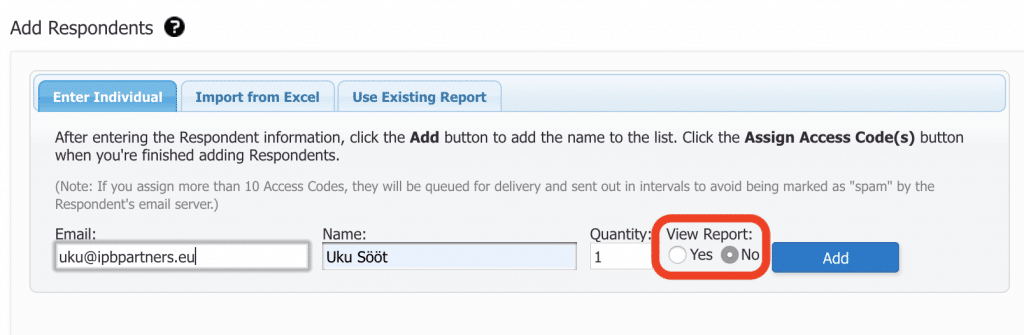
We usually recommend No, so people first see their results with a certified facilitator who can put them in context. It also gives you time to read the reports before the session. There are exceptions, for example when someone already knows DiSC well, and then Yes makes sense.
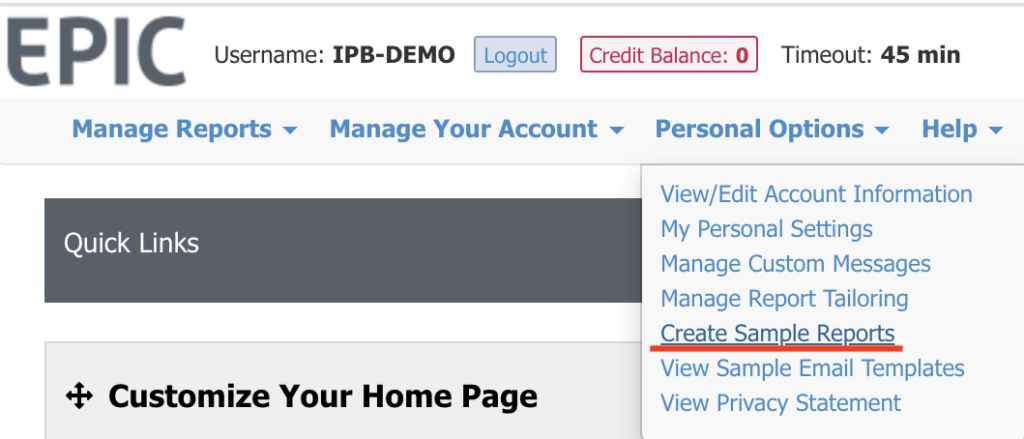
5. Create sample reports
A sample report shows a prospective client exactly what their people will receive. You can add your own logo and messaging, which makes it a useful attachment for proposals and sales meetings.
Go to Create Sample Reports, choose the report, select the profile and follow the steps until you can view or download it.
Stuck on something in EPIC? Write to us at hello@ipbpartners.eu.
You might also be interested in